
 XM
XM Bybit
Bybit Binance
 Robinhood
 Webull
 IC Markets
 Pepperstone
 OKX
OKX Vantage
 VT Markets
 BingX
BingX Gate.io
 Kucoin
 MEXC
MEXC Exness
 Bitget
Myfxbook – a term that may be quite familiar to some traders. The Myfxbook platform provides a range of tools and services to enhance the forex trading experience.
So, what is Myfxbook? How do you use Myfxbook? How does selling signals on Myfxbook or copy trading on Myfxbook work? Read the article below to find answers to all these questions!
1. WHAT IS MYFXBOOK?
Myfxbook was launched in 2009. The website was created with the purpose of building a community where both new and experienced traders can come together and share ideas.
The goal of Myfxbook Ltd in creating a professional network includes the following features:
- Transparent performance display and monitoring
- Simplified learning process
- Support for both beginners and experienced traders
Myfxbook is the first social network for forex traders.
Essentially, Myfxbook is an automated trading account analysis system that enables interaction among traders worldwide; it is one of the pioneers in the field of “social trading networks.”
Today, the platform expands its network of global forex traders, offering everything from trading journals and market analysis to active community forums.
2. HOW TO USE MYFXBOOK
To use this Myfxbook tracking tool, investors must first connect their trading accounts to the platform. Myfxbook also integrates live trading accounts so that all tools are available in one place.
The company partners with brokerage firms, working with trading platforms such as MT4, MT5, cTrader, and other proprietary platforms.
After accessing the Myfxbook website, you need to register a Myfxbook account. Click on Sign Up at the top right of the screen. You can then register using Facebook or Gmail.
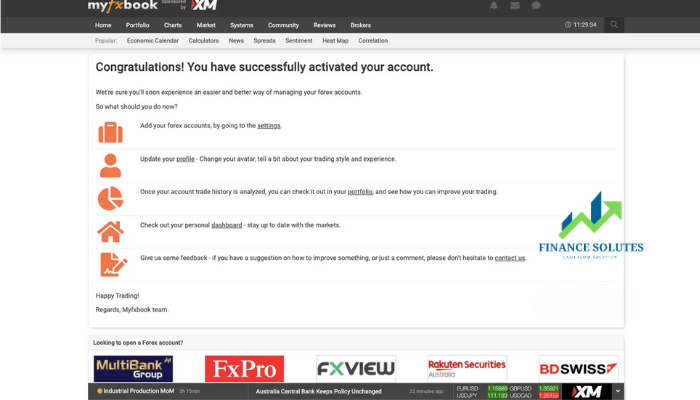
Once you have successfully registered an account, the website will have an interface like this. You can update your personal information in the Profile section.
2.1. Instructions for linking a trading account to Myfxbook
First, click on Portfolio on the menu bar -> Select “Add Account” -> Select a trading platform (can be Myfxbook MT4, MT5, …). An example of Myfxbook MT4.
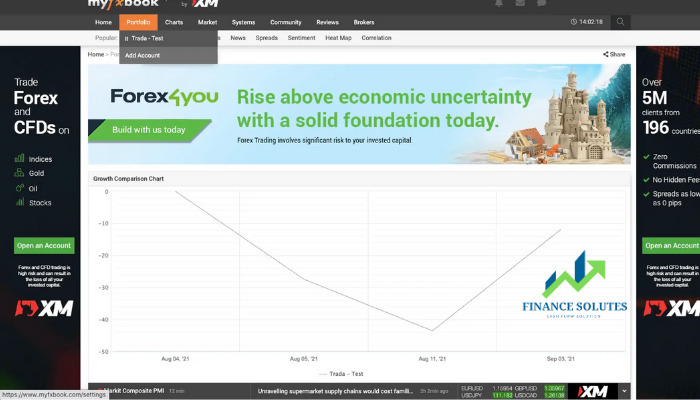
Here, MT4 will have four options; one of which is a paid option, Metatrader Live Update. This article will guide you on how to connect your MT4 account to Myfxbook (see image below).
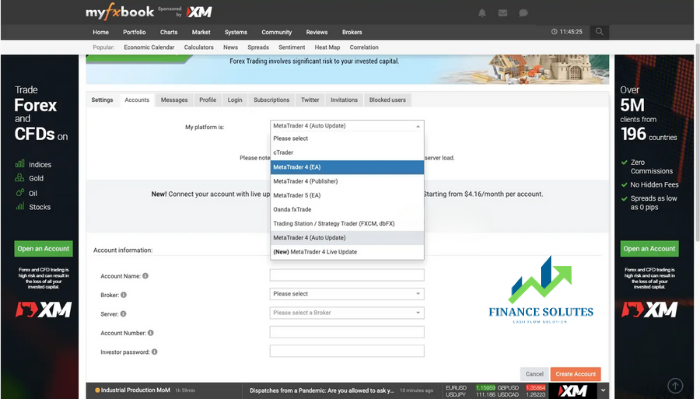
In this article, Finance Solutes will guide you how to add an account in the simplest and fastest way. You can choose MetaTrader 4 (Auto Update). Then fill in the account information in the blank boxes:
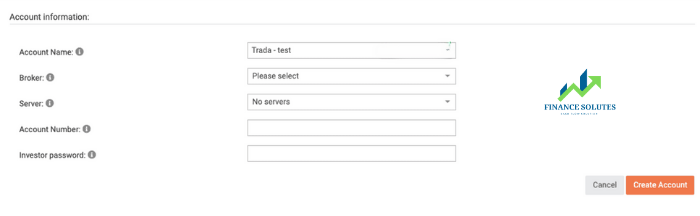
– Account Name: You can name it as you like
– Broker: Select the forex broker where you opened an account (For example, ICmarkets, VantageFX, …)
– Server: You can see the server information in the forex broker account information email sent when you opened an account. (For example: ICmarkets – Live 24).
– Account Number and Investor password: Fill in your MT4 account ID information for Myfxbook to connect. This information is also sent in the email when you successfully register an account at the forex broker.
When you have filled in all the information, click on “Create Account”. It will then take about 1 minute for Myfxbook to connect to your account. After you have successfully connected, there will be a notification board as shown below:
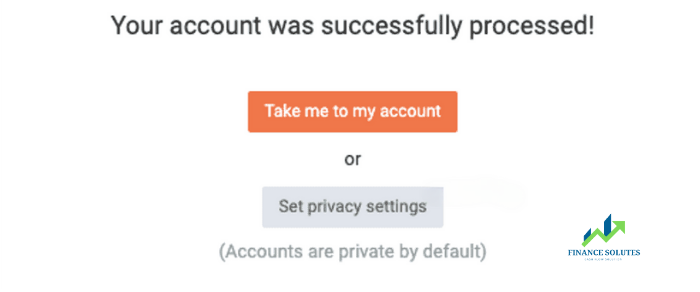
Next, you need to verify your account. The essence of verifying your account is to prove that you are the real owner of this trading account.
Select Portfolio -> Select Add Account -> Click on “Accounts without Portfolio” -> Select Edit

Then, select Verification (optional), you will see the box “Authorization password”. This is the password that Myfxbook provides you. To authenticate your account, you must change your trading account password in MT4 to this password.
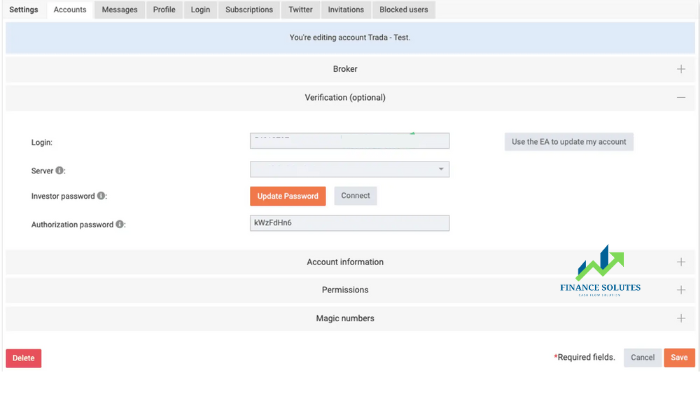
Instructions for changing MT4 account password
– Open MT4 interface -> Select Tools on the Menu bar -> Select Options
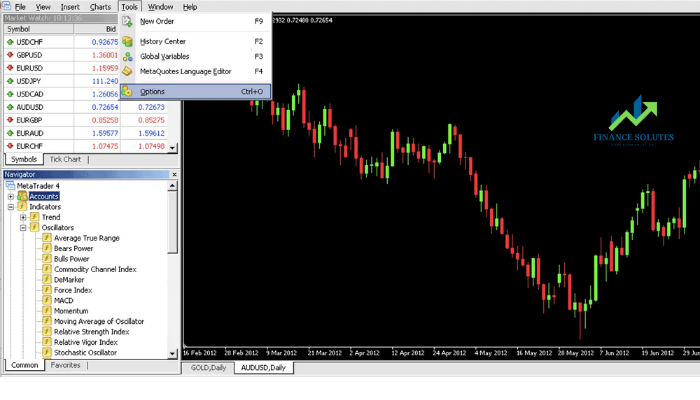
– After selecting MT4 Options, a table of options will appear -> Select the Server tab -> Next to the Password box, select Change.
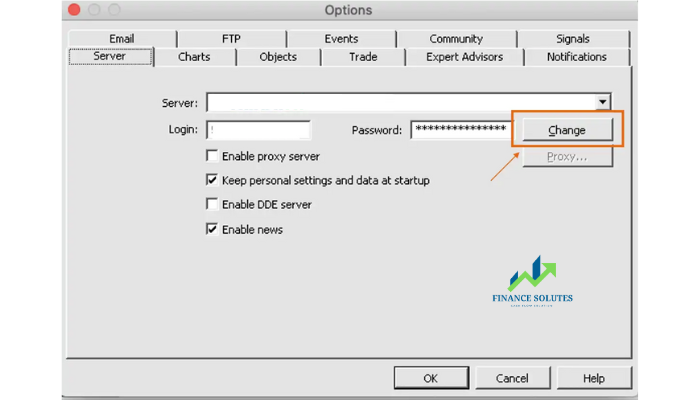
– Enter the current password in the Current Password box -> Select Change investor (read only) password -> Copy the Myfxbook password above (the “Authorization password” box) into the New Password and Confirm sections -> Click OK.
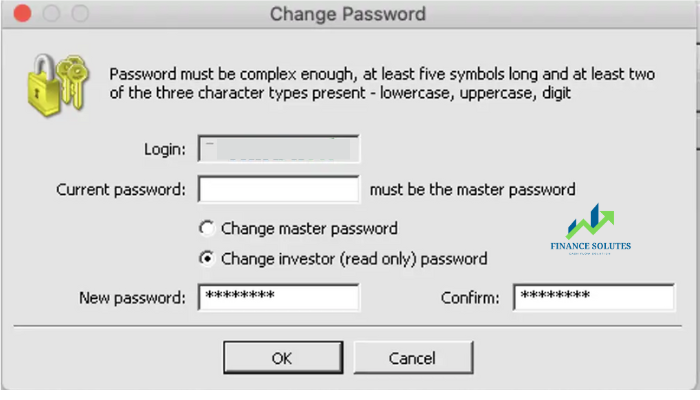
– Then go back to the Myfxbook website -> Select Update password -> Copy the newly changed password into the Investor password box -> Click Ok.
– Continue to click on the Connect section next to the Update password button. Wait until the system notifies “Account Authorized Successfully!” as shown below, it is successful:
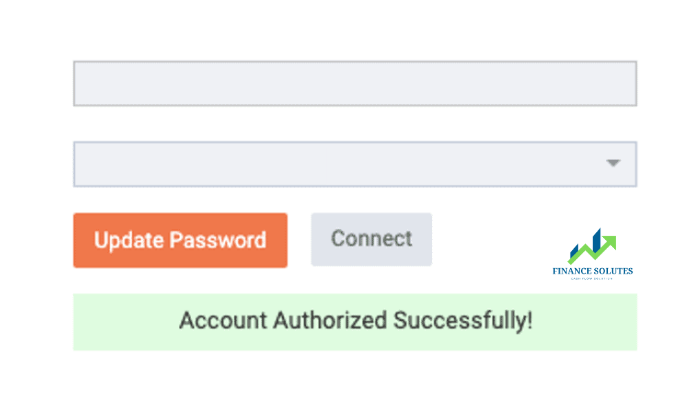
Then, go to Portfolio and you will see your account has 2 green ticks as shown below:

2.2. Options in Myfxbook
After connecting their live accounts to Myfxbook, traders can freely use the available options on Myfxbook, including:
2.2.1. Portfolio
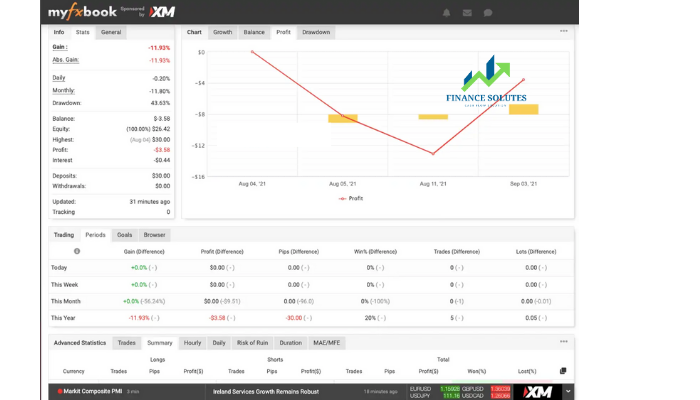
Users can add as many accounts as they want to their portfolio. There is no limit to the number of accounts. For each account, traders can view a range of statistics related to their investment portfolio:
- Growth chart/Account balance.
- Trading volume per currency pair.
- Risk-to-reward ratio per currency pair and selected time frame.
- Advanced statistics, including volatility measurements and Z-score.
- Average holding time for each currency type, including both buy and sell positions (Trade history).
- Monthly earnings based on total accumulation for each month from the beginning to the end of the month (calculated in GMT time zone).
You can also create your own custom analysis by selecting the time frame and choosing your preferred parameters.
2.2.2. Charts
The Charts tab on Myfxbook allows traders to share their forex charts and market analysis with community members.
Followers can track changes made to charts and explore charts across several categories including most viewed, most upvoted, most followed, recently updated and most commented.
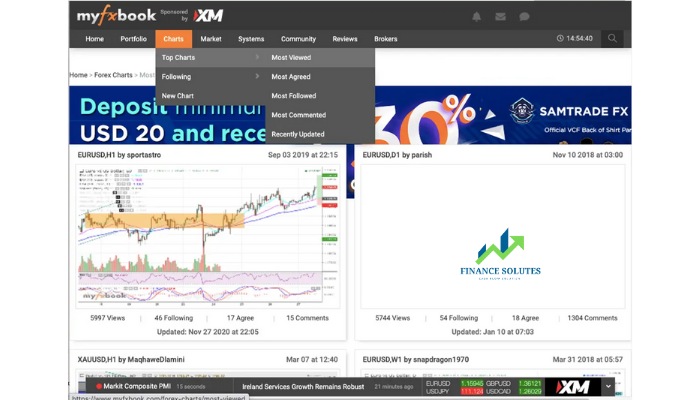
This makes it easy to view top traders and the best trading accounts on Myfxbook. Users can also access 70 indicators and 100 graphical tools within the charts.
You can also create your own custom charts. Additionally, you can filter charts by time ratio and forex pairs.
Note: Charts are set to private mode by default. However, by publishing your chart (Publish), thousands of members can analyze, discuss, and subscribe to your chart.
2.2.3. Market
The Market tab provides access to a variety of forex trading tools. For example, retail sentiment indicators and patterns facilitate technical analysis.
Users can also apply filters based on volatility in pips or percentage, heat maps for strong or weak currencies, and forex pair correlations i.e. negative or positive.
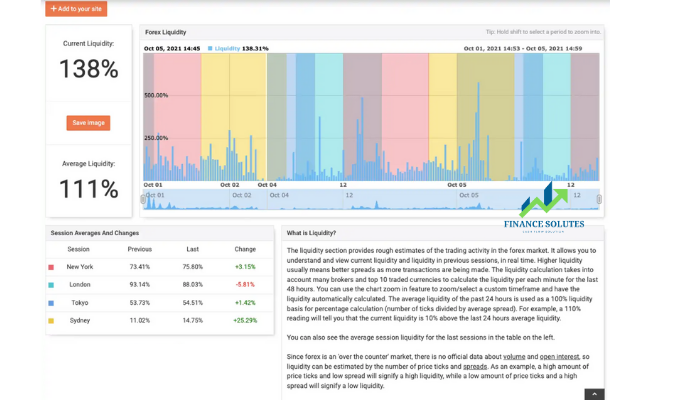
Liquidity on Myfxbook provides preliminary estimates of trading activity in the forex and gold markets, including data from the current day and previous sessions. Historical data also offers valuable insights into the past performance of over 70 forex pairs.
2.2.4. Systems
The Systems section on Myfxbook allows members to search for trading strategies they want to follow or copy trade. You can search for a system by setting parameters such as growth, drawdown, leverage, or by searching for the system name.
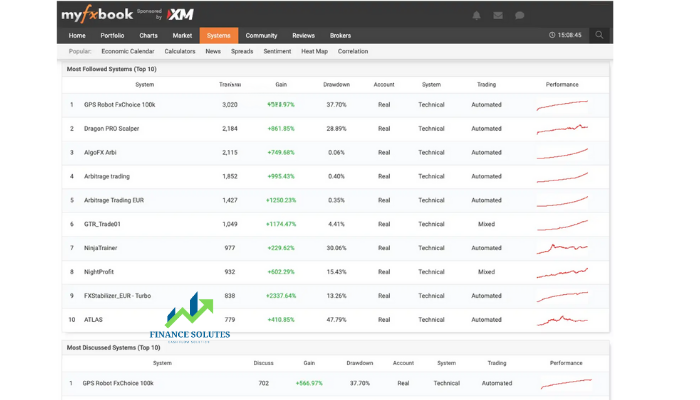
The Systems tab also provides access to the most popular trading systems. You can explore these systems or use Myfxbook’s Auto Trade mode for automated trading.
However, to use the copy trading service, you will need either a live or demo account with a broker partnered with Myfxbook.
Note: Only public and verified systems are listed in the Systems tab.
2.2.5. Community
The Community section connects new traders and experienced professionals to share trading ideas. You can find thousands of discussions on various topics, from the best robots and signals to the latest market results.
Beginners can learn from experienced members who can guide them through day trading forex, share tips, and provide valuable insights.
Key categories in the Myfxbook community:
- General forum
- Strategies forum
- New Traders forum
- Programming forum
- Forex Patterns forum
- Sentiment forum
- Trading Systems forum
- Crypto forum
- Experienced Traders forum
Additionally, Myfxbook offers other useful services such as: Economic Calendar, Forex Calculator, Broker Spread Comparison (Myfxbook Broker Spreads), and Myfxbook Sentiment Indicator.
2.2.6. Myfxbook Calculator
The Myfxbook Calculator can be used without registration or login on Myfxbook.
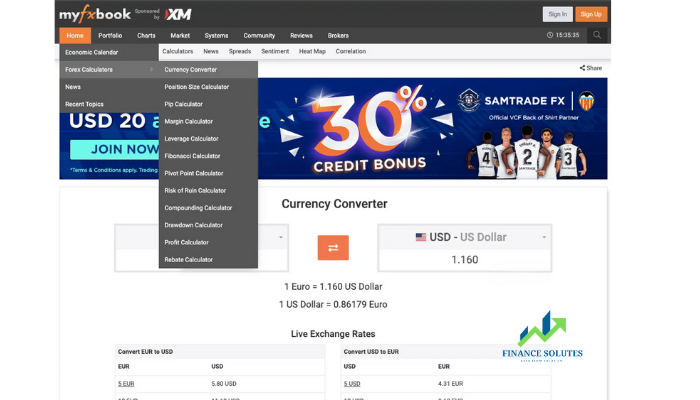
In the calculation tools, traders have many options such as: Fibonacci calculator, Pip calculator, Pivot Point calculator, ….
Let’s look at an example of a Fibonacci calculator below:
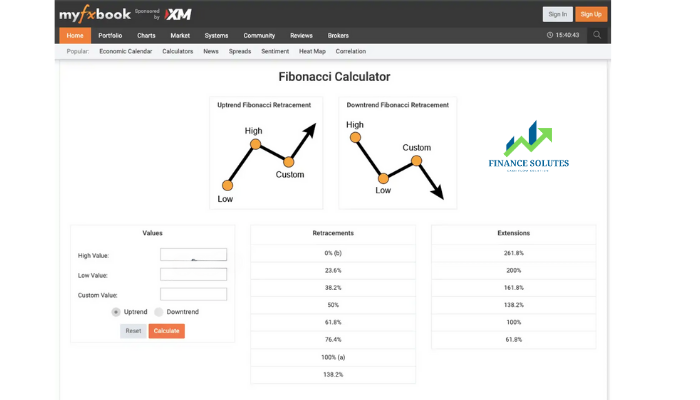
The Fibonacci Calculator calculates the expansion of a value—whether it decreases or increases—based on three inputs: high value, low value, and a custom value set by the user.
After entering these values, users can also determine whether the trend is bullish or bearish and receive appropriate results based on this information.
2.2.7. Position Size Calculator
The Myfxbook Position Size Calculator determines the ideal position size based on:
- Currency pairs
- Risk level (percentage-based or fixed amount)
This tool helps forex traders estimate the number of currency units to buy or sell to control risk on each trade.
3. COPY TRADE MYFXBOOK – AUTO TRADE
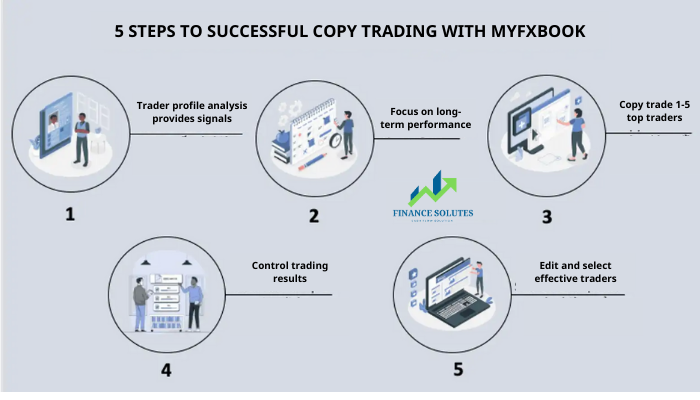
Simply put, copy trading is the process of replicating trades from successful traders directly into your MT4 account.
Myfxbook hosts MT4 platforms on its servers, allowing signal exchange through experienced expert advisors (EAs).
Whenever a signal provider executes a trade—whether as a market order or a pending order—the platform sends the signal to followers’ accounts, enabling them to open the same position simultaneously.
Myfxbook AutoTrade is designed to run copy trades without errors or interruptions.
4. PROS AND CONS OF MYFXBOOK
| PROS | CONS |
|---|---|
| – Free member registration | – Fake statistics can be uploaded |
| – Easy access to AutoTrade | – Limited customer support |
| – Large community network | |
| – Wide range of analytical tools | |
| – Exclusive partnerships with 40 brokers | |
| – Compatible with multiple trading platforms such as MT4, MT5, etc. |
5. CONCLUSION
Myfxbook is the first and pioneering social network and trading forum. Since its establishment, it has become one of the most popular and widely used trading tools.
The Copy Trade feature, also known as Myfxbook AutoTrade, allows users to easily integrate promising and exciting trading systems into their portfolios.
- t.me/finance_solutes
- Website: https://finance-solutes.com
- Hotline: +1 929 5636 439 ( Hotline )
- 26 Broadway, Suite 934, New York, 10004, US
